Getting started
Imagery connections belong to your Argus account, not to one investigation. Once connected, you can use that provider in any workspace where your role allows you to add imagery.
- Sign in to Argus.
- Select Account in the upper-right corner.
- Find Imagery connections.
- Connect one or more providers available through your organization or provider account.
- Open a workspace, select Layers, and search or add imagery.
Collaborators can see imagery layers you add to a shared workspace. They cannot see or copy your provider credentials.
Choose a connection type
Each provider decides which credential it accepts. Use the method named in the matching Argus connection panel.
- OAuth client
- A client ID and client secret that allow Argus to request a temporary access token from the provider. Copernicus uses this method.
- API key
- A single secret string linked to your provider account. Planet Basemaps and Vantor use API keys in Argus.
- Custom tile URL
- A web address for an existing XYZ tile service. Use this when your organization already hosts compatible map tiles.
OAuth client
Copernicus Data Space
Use Copernicus to search the Sentinel catalog and add supported Sentinel imagery to your map.
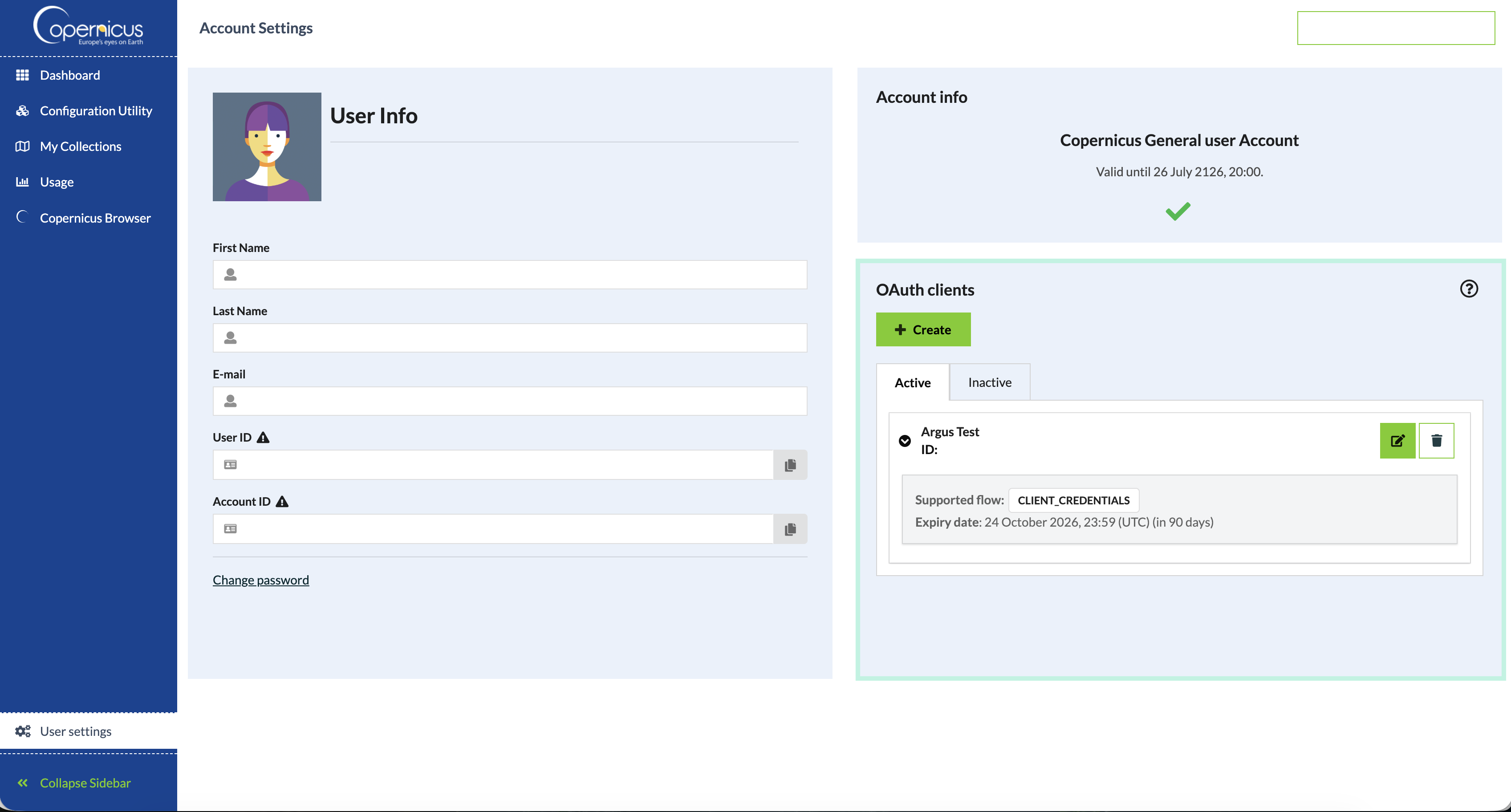
Create the OAuth client
- Sign in to the Copernicus Data Space Dashboard.
- Open User Settings, then OAuth clients.
- Select Create and enter a recognizable name, such as Argus.
- Copy the client ID and client secret before closing the confirmation screen. The secret may not be shown again.
- In Argus, open Account and paste both values into the Copernicus connection.
- Select Connect Copernicus. Argus will test the credentials before saving them.
Argus uses the client credentials flow required by the Copernicus services it queries. A different provider key cannot be substituted in these two fields.
OAuth client
Planet Insights trial
This connection is intended for eligible Planet Insights trial accounts. It lets Argus search the trial catalog and request imagery made available under that trial.
Connect the trial
- Sign in to your Planet Insights account.
- Open the account or developer credentials area and locate your OAuth client ID and client secret.
- In Argus, open Account and find Planet Insights trial.
- Paste the client ID and client secret, then select Connect trial.
- Open a workspace and use the Planet Insights search in the Layers panel.
Trial access, coverage, download limits, and expiration are controlled by Planet. A successful connection confirms the credential, but it does not expand the imagery included in your trial.
API key
Planet Basemaps
Planet Basemaps is separate from the Planet Insights trial connection. Use it when your Planet plan includes basemap tile access.
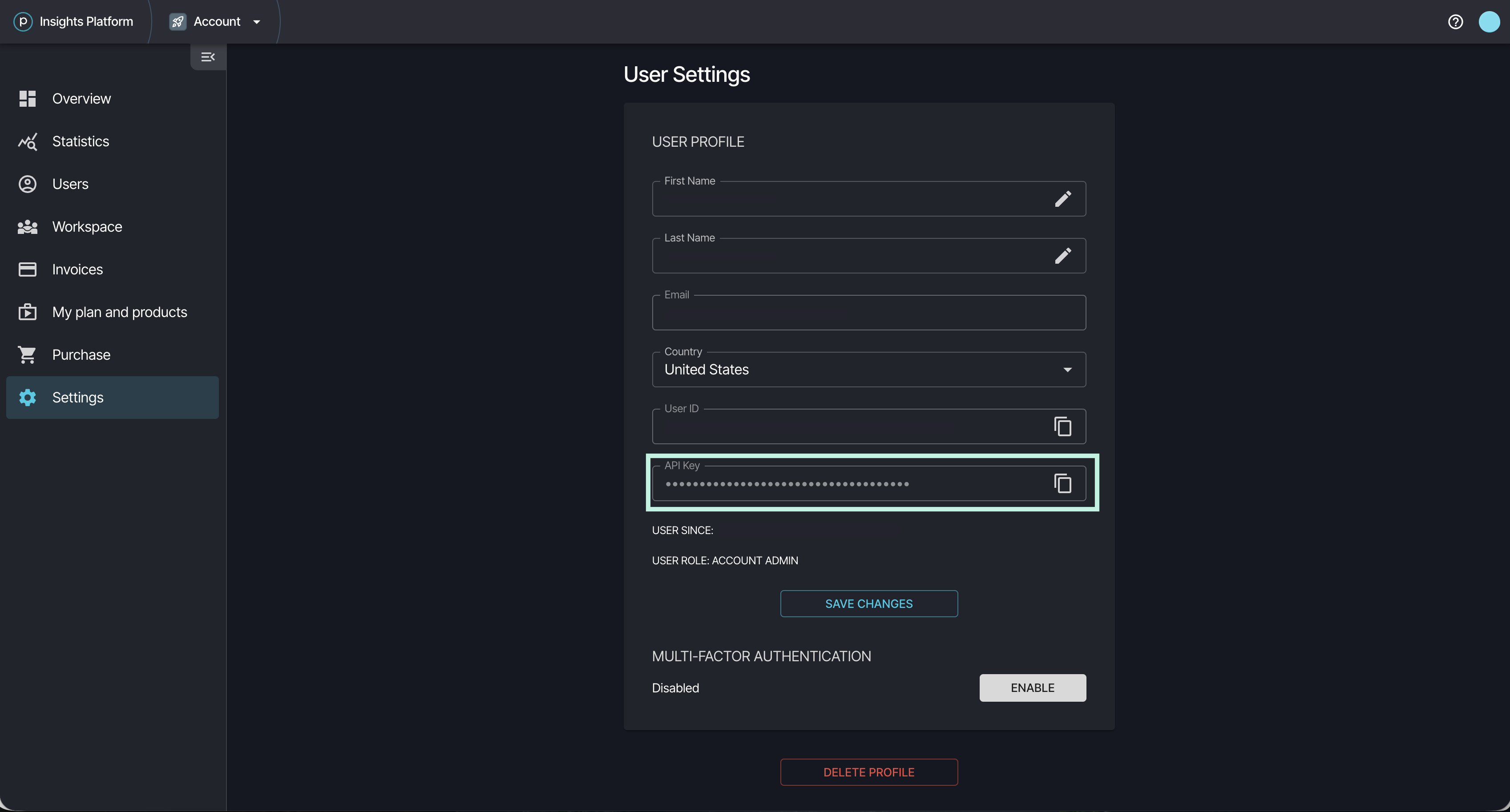
Find and connect the API key
- Sign in to your Planet account.
- Open your account settings and locate your API key. Planet may label this area My Settings or API key.
- In Argus, open Account and find Planet Basemaps.
- Paste the API key and select Connect Planet.
- In a workspace, open Layers and add a basemap mosaic available to your account.
Your Planet subscription must also include the requested mosaic or tile service. Contact your Planet administrator if the key connects but no usable basemaps appear.
API key
Vantor / Maxar
Connect a Vantor account with the permissions required to search the catalog and display imagery. Your organization may still refer to the service or account as Maxar.
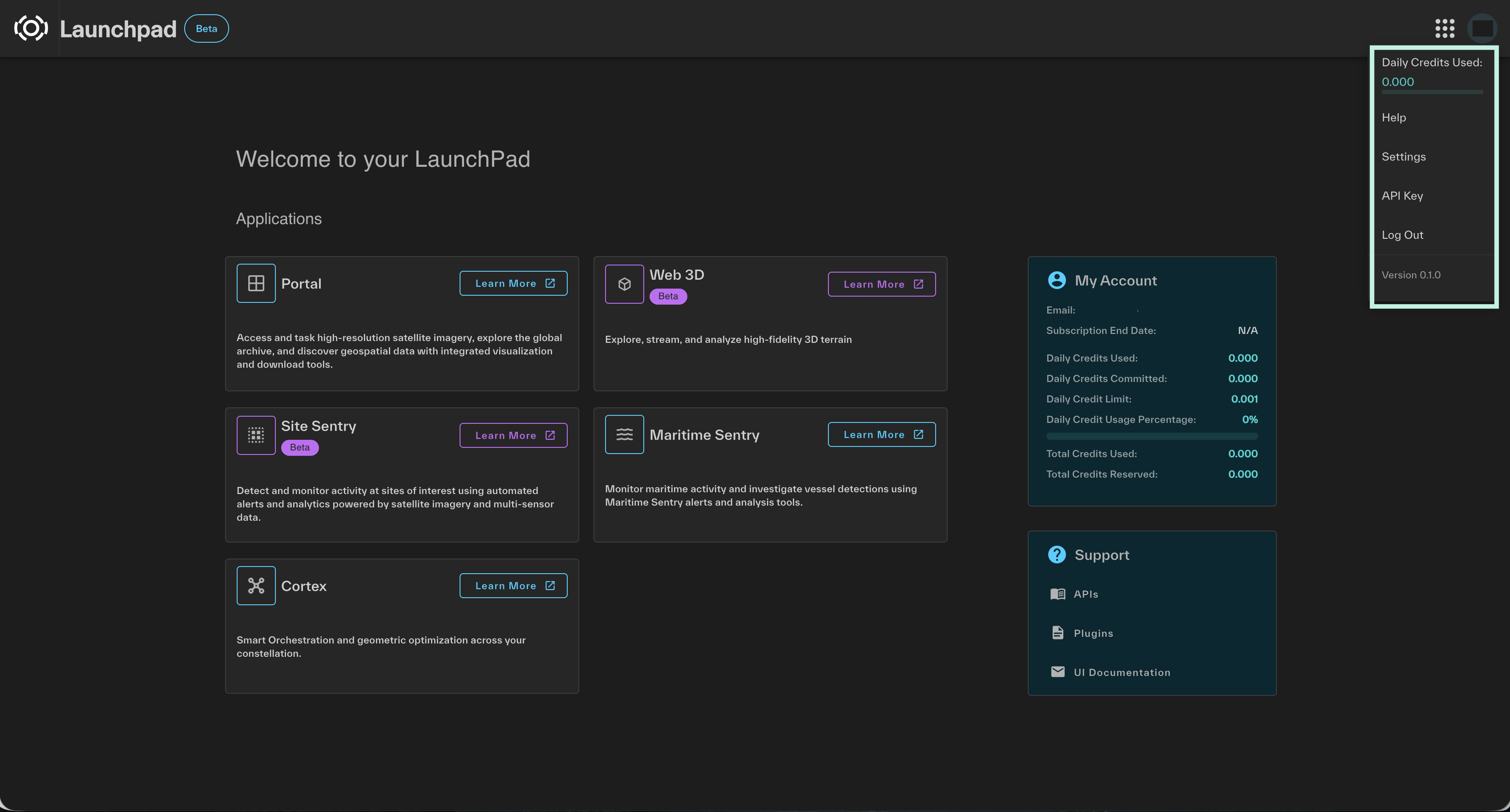
Find and connect the API key
- Sign in to Vantor Hub.
- Select your initials in the upper-right corner, then select API Key.
- Copy the API key. Check its expiration date and keep it private.
- In Argus, open Account and find Vantor / Maxar.
- Paste the key and select Connect Vantor.
- Open a workspace and search Vantor from the Layers panel.
Vantor API keys can expire, and available imagery depends on the permissions and products assigned to your account. If a previously working connection stops, generate or copy a current key and reconnect it in Argus.
Custom XYZ tile layers
Use a custom layer when your organization or another service gives you a direct XYZ tile URL. The address normally contains {z}, {x}, and {y} placeholders.
- Open a workspace and select Layers.
- Choose the option to add a custom imagery layer.
- Enter a clear layer name and the complete tile URL.
- Add attribution and date information when supplied by the imagery owner.
- Add the layer and confirm that it draws over the map.
Custom layer configuration is shared with workspace members. Only use a credential-bearing URL if the provider designed it to be shared with everyone who can access that workspace.
Esri World Imagery
Esri World Imagery is available as a reference basemap in Argus and does not require you to connect a separate provider account. Availability and resolution vary by location.
Use it for geographic context. For time-specific analysis, select an imagery product with acquisition details from one of the connected catalog providers.
Credentials and security
- Connect credentials through the Argus Account panel. Do not put them in project notes, evidence, comments, or custom layer names.
- Provider credentials are personal. Workspace collaborators cannot view them.
- Disconnect a service in Argus when you no longer need it.
- Revoke or rotate a credential in the provider's own portal if you believe it has been exposed.
- Follow your organization's rules for approved imagery, licensing, retention, and distribution.
Troubleshooting
- The connection is rejected
- Copy the credential again without extra spaces. Confirm that you used the correct connection type and that the credential is still active.
- The connection works, but no imagery appears
- Check the search area, date range, cloud filter, and provider coverage. Your subscription or trial may not include the requested product.
- A provider worked before but stopped
- The credential may have expired, been revoked, or lost permissions. Create or copy a current credential in the provider portal and reconnect it in Argus.
- A layer is present but the map looks wrong
- Check layer visibility, order, and opacity. Some products only cover part of the search area; transparent space outside the image footprint is expected.
Contact support
If the problem continues, contact Argus support. Record the provider name, the exact error message, and what you were trying to search or display. Do not include the credential itself.